Change Request Training SOP
|
SOP Title |
Submitting a HubSpot Change Request |
|
Owner |
HubSpot Administration |
|
Effective Date |
07/29/2026 |
|
Last Updated |
07/29/2026 |
|
Purpose |
Shows users how to submit, monitor, and validate a HubSpot change request ticket. |
SOP Video: Change Request SOP Video
How to use this guide: Complete each step in order and add the matching screenshot in the space provided.
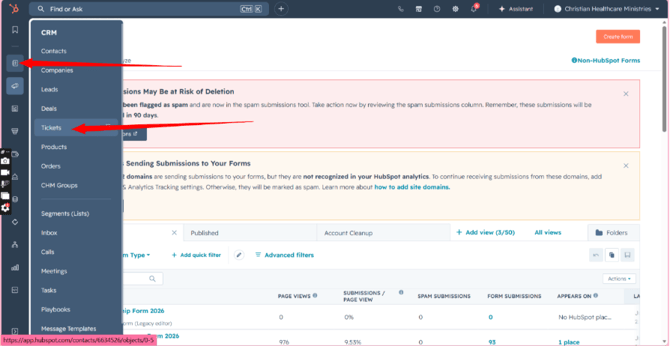
Step 1: Open Tickets
Description: In HubSpot, go to Tickets > All Tickets.
Screenshot / Picture for Step 1
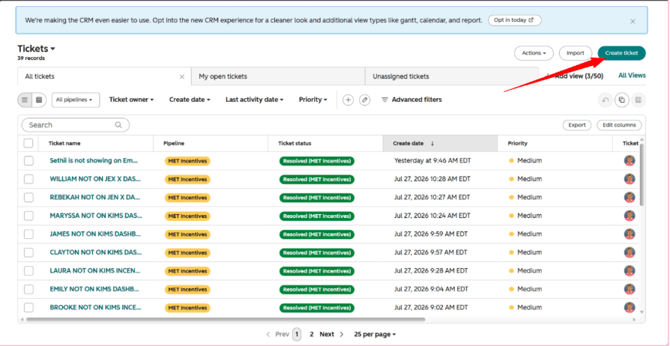
Step 2: Create a Ticket
Description: Click Create ticket.
Screenshot / Picture for Step 2
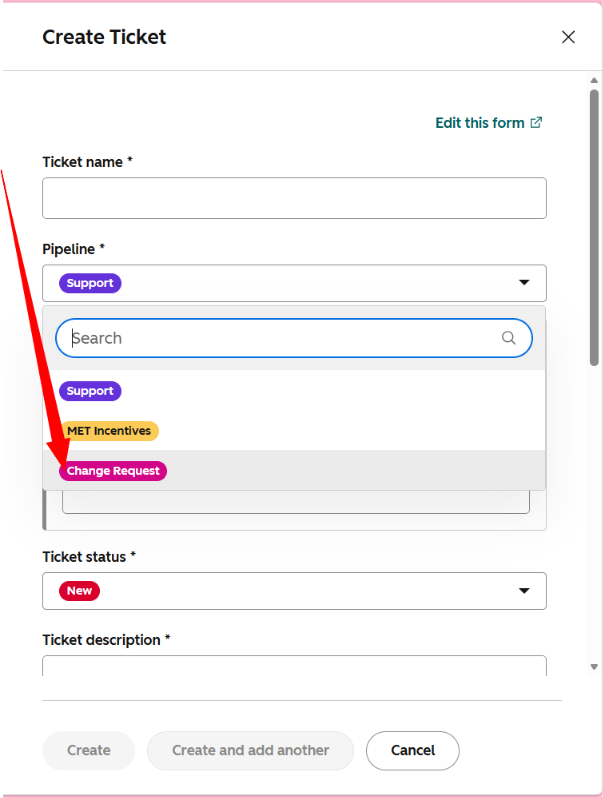
Step 3: Select the Pipeline
Description: Choose Change Request in the Pipeline field.
Screenshot / Picture for Step 3
Step 4: Name the Request
Description: Enter a short title that clearly states the HubSpot change you need.
Screenshot / Picture for Step 4
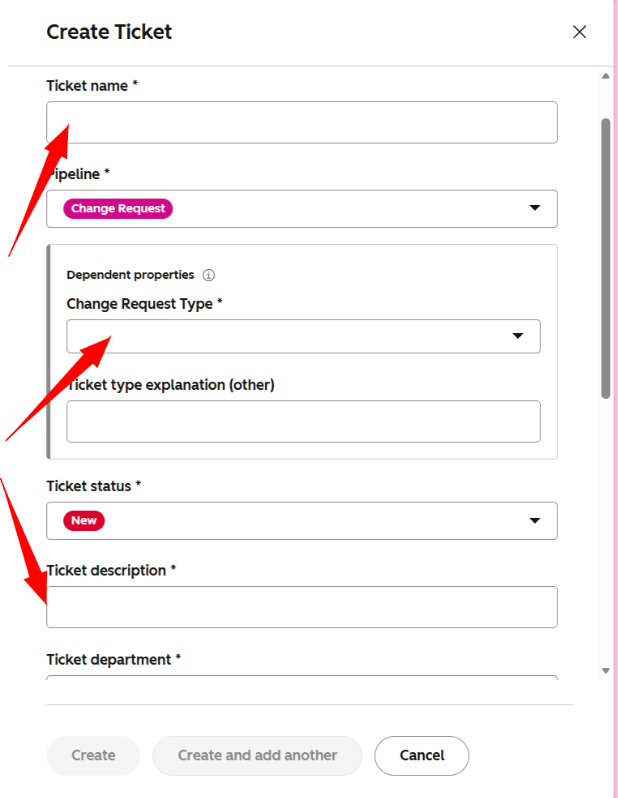
Step 5: Explain the Business Need
Description: Describe why the change is needed and what problem it will solve.
Screenshot / Picture for Step 5
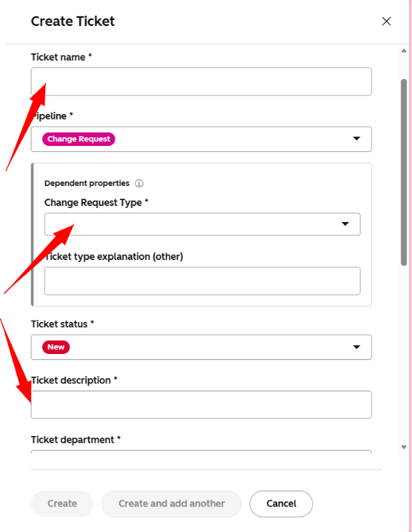
Step 6: Enter the Request Details
Description: Add the asset type, desired outcome, deadline, impacted team, and urgency.
Screenshot / Picture for Step 6
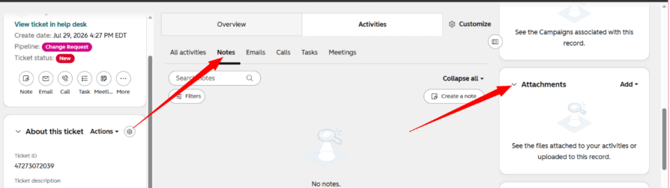
Step 7: Add Supporting Information
Description: Attach screenshots, examples, links, files, field names, or other details that help explain the request.
Screenshot / Picture for Step 7
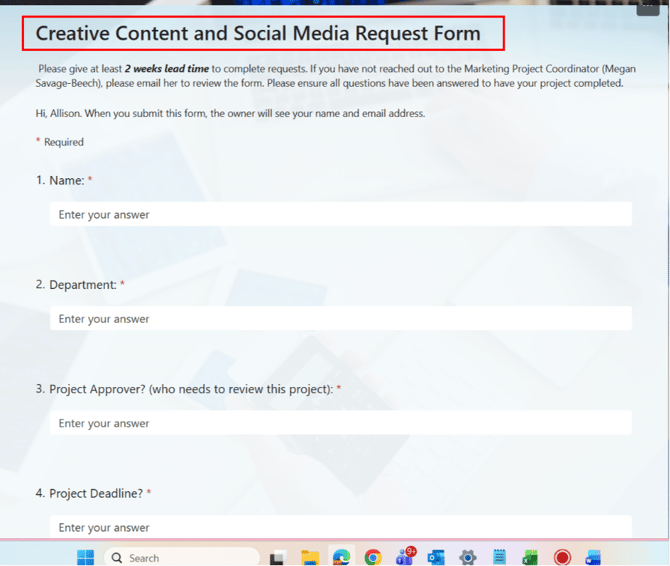
Step 8: Route Creative Requests Correctly
Description: For design or creative work, stop and use the Creative Change Request form instead. Link: Creative Request Form
Screenshot / Picture for Step 8
Step 9: Review and Submit
Description: Check the ticket for accuracy, then click Create or Submit.
Screenshot / Picture for Step 9
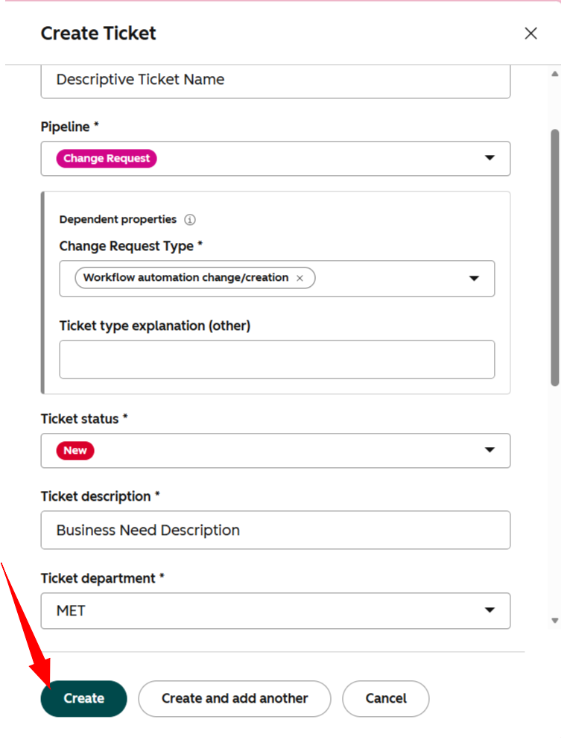
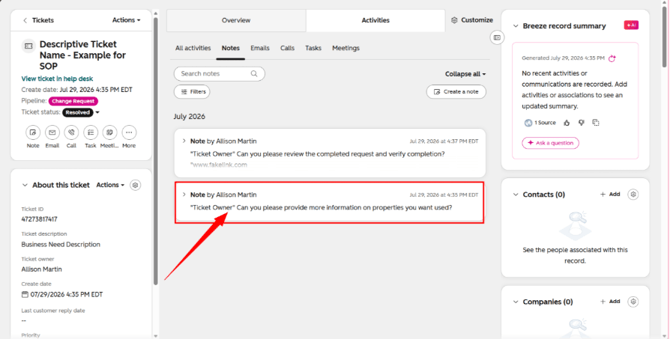
Step 10: Respond to Follow-Up Questions
Description: Watch the ticket and provide any missing details requested by the HubSpot Admin.
Screenshot / Picture for Step 10
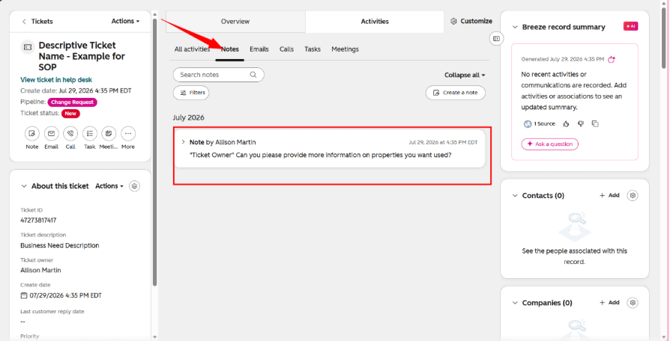
Step 11: Validate the Completed Change
Description: Test the completed update and confirm in the ticket that it meets the approved request.
Screenshot / Picture for Step 11