
Simple Training Guide
|
SOP Title |
Creating a HubSpot Tracking URL |
|
Owner |
Marketing Operations |
|
Effective Date |
07/29/2026 |
|
Last Updated |
07/29/2026 |
|
Purpose |
Shows users how to create, name, test, and copy a HubSpot tracking URL. |
Loom Video: UTM Tracking Link SOP Training Video.mp4
How to use this guide: Complete each step in order and add the matching screenshot in the space provided.
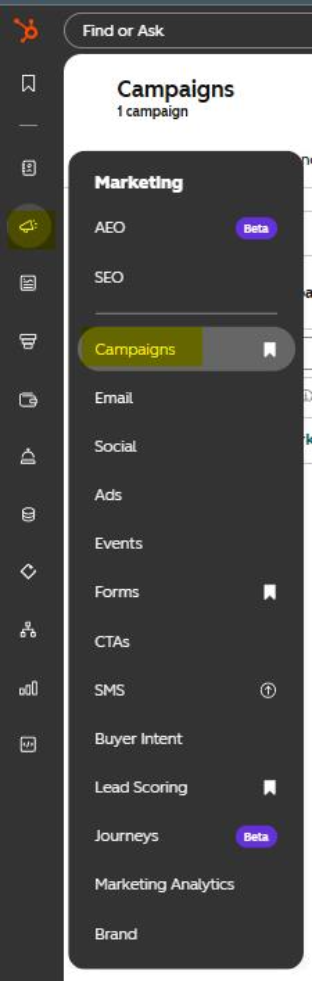
Step 1: Navigate to the appropriate campaign
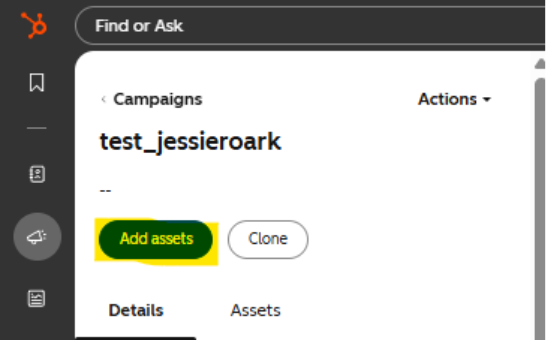
Description: In HubSpot, navigate to Marketing>Campaigns, open the appropriate campaign, then click "Add assets"
Screenshot / Picture for Step 5
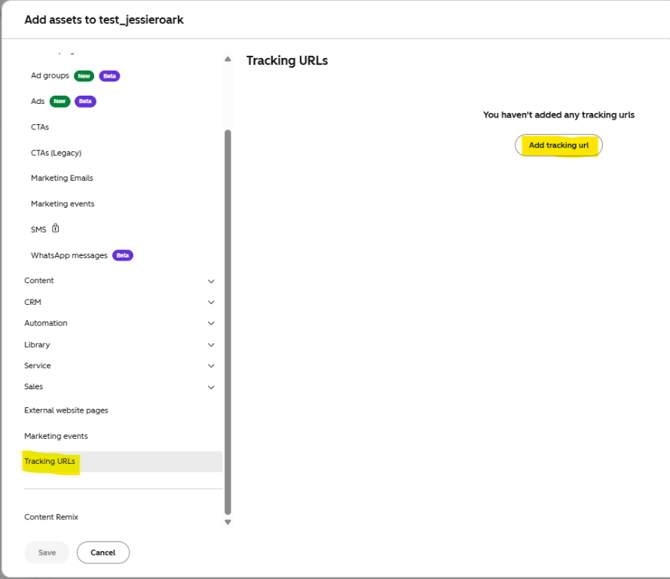
Description: Select "Tracking URLs" from the left menu, then click "Add tracking URL"
Screenshot / Picture for Step 5
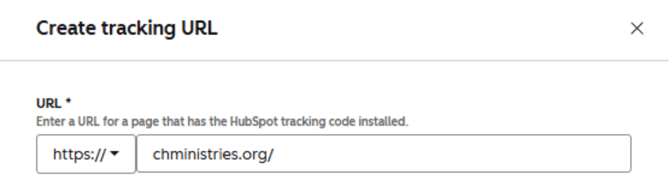
Step 3: Enter the Destination URL
Description: Paste the full page URL and confirm the correct http:// or https:// option for the page your effort is pointing to.
Screenshot / Picture for Step 5
Description: Confirm that the UTM Campaign field shows the campaign this asset is attached to.
Screenshot / Picture for Step 6

Step 5: Select the Source
Description: Click the Source dropdown menu and select the source for your tracking URL. If this is an internal effort, select the appropriate source.
Screenshot / Picture for Step 7
|
Source |
Definition |
Next Step |
|
Email marketing |
Select if you're using the link in a marketing email. |
|
|
Paid search |
Select if you're using the link in a paid search campaign. |
|
|
Organic social |
Select if you're using the link in a social media post |
Select a social network |
|
Paid Social |
Select if you're using the link in a paid social media effort |
Select a social network |
|
Other Campaigns |
Select if the effort is an external partner no matter the source (i.e. influencer, sponsorship, event, paid media partner) and enter a Custom UTM Source. |
Use the template “audienceowner_subset”. The first section should be the parent company/owner of the audience. If necessary, add underscore for the subset owner of the audience. Examples: “radiant_bibleminute” or “pandora”
|
Step 6: Enter the UTM Medium
Description: If the UTM medium is not prepopulated, use channel_effortname_monyr with no spaces or symbols. Example: email_biblicalhealthcareoptions_aug22.
Screenshot / Picture for Step 9

Step 7: Leave UTM Term Blank
Description: Do not enter a UTM Term unless the advertising platform fills it automatically.
Screenshot / Picture for Step 10

Step 8: Enter UTM Content
Description: If the UTM Content field is editable, use specificcampaignname_directedlink. Example: radiant_healthiestyou.
Screenshot / Picture for Step 11

Step 9: Create and Copy the URL
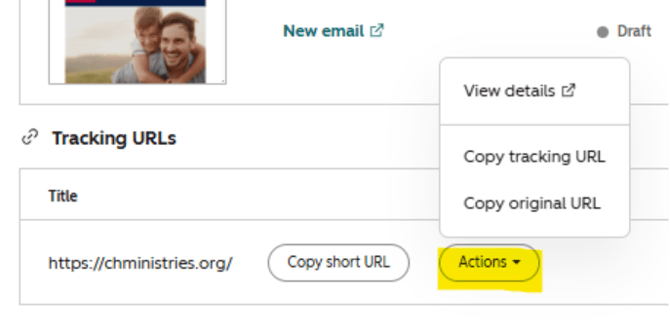
Description: Click Create, then from the campaign home page, click “Assets”, then scroll down and hover over “Tracking URLs”. Next, click the “Actions” dropdown menu, and copy the full tracking URL or shortened URL. Do not use the shortened link for Paid Social efforts.
Screenshot / Picture for Step 12

Step 10: Test the Link
Description: Open the link in a new browser tab and confirm it directs to the correct page before publishing.