Simple Training Guide
|
SOP Title |
Building a HubSpot Marketing Email |
|
Owner |
Marketing Operations |
|
Effective Date |
07/29/2026 |
|
Last Updated |
07/29/2026 |
|
Purpose |
Shows users how to build, review, and prepare a HubSpot marketing email for sending. |
Loom Video: Marketing Email Training SOP video.mp4
How to use this guide: Complete each step in order and add the matching screenshot in the space provided.
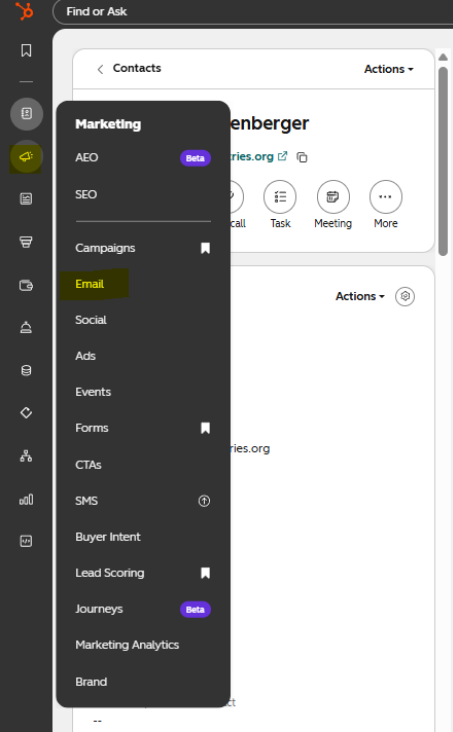
Step 1: Open Marketing EmailDescription: In HubSpot, go to Marketing > Email.
Screenshot / Picture for Step 1
Step 2: Create the Email
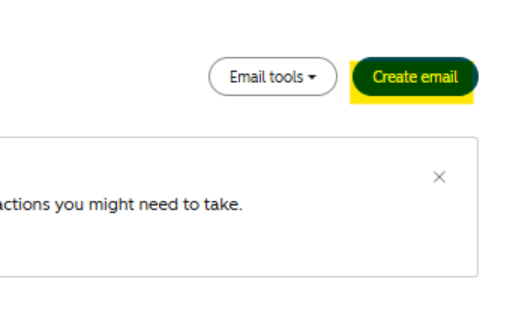
Description: Click Create email.
Screenshot / Picture for Step 2
Step 3: Choose the Sending Method
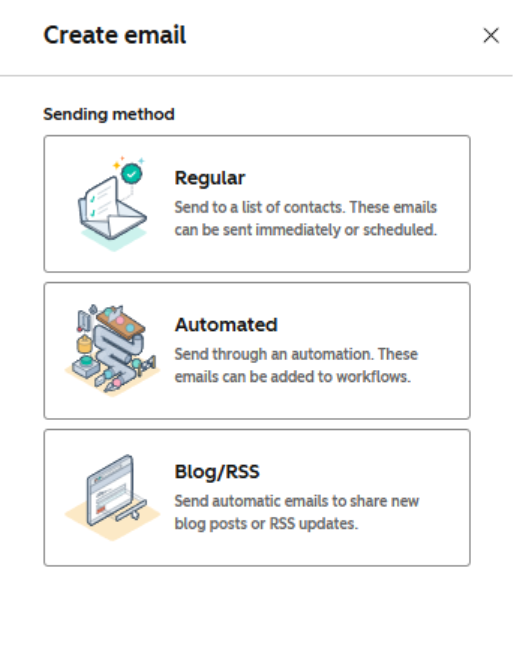
Description: Select Regular or Automated based on the approved marketing effort.
Screenshot / Picture for Step 3
Step 4: Choose a Template
Description: Select the approved email template and enter the internal email name.
Screenshot / Picture for Step 4
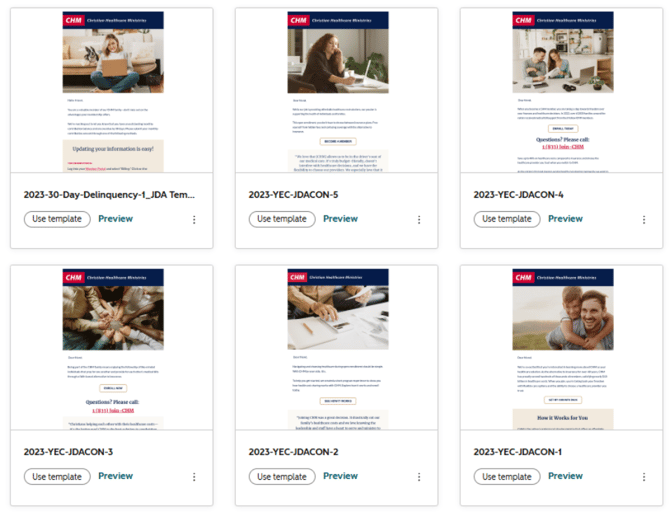
Step 5: Add the Email Content
Description: Update the copy, images, buttons, and other modules with the approved content.
Screenshot / Picture for Step 5
Step 6: Complete the Email Details
Description: Add the campaign, email name, email team, from name/address, subject line, and preview text.
Screenshot / Picture for Step 6
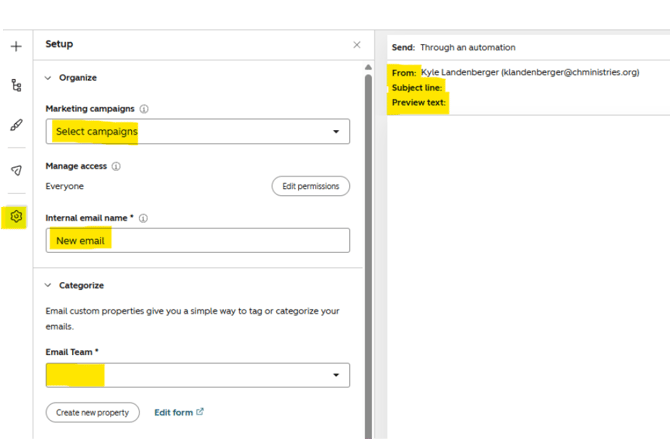
Step 7: Confirm Links and Recipients
Description: Check every link and confirm the send list, suppression list, subscription type, and unengaged-contact setting.
Screenshot / Picture for Step 7
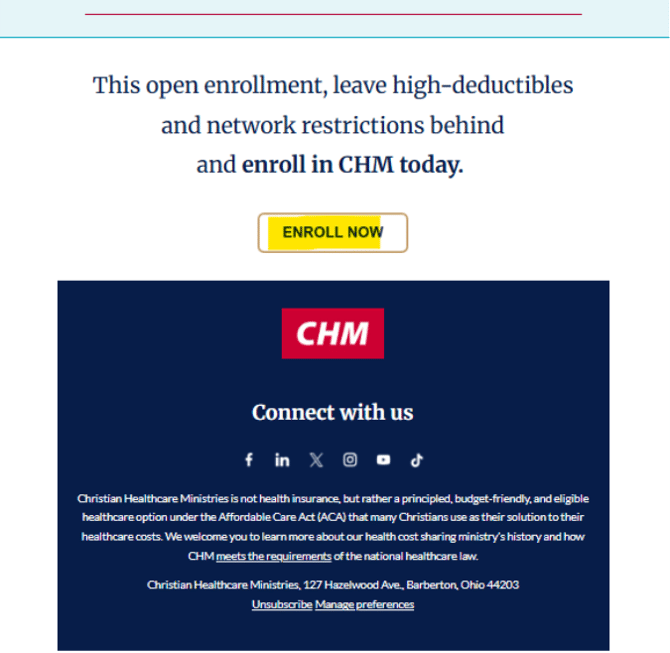
Step 8: Preview and Test
Description: Preview the email on desktop and mobile, then send a test email and review it.
Screenshot / Picture for Step 8
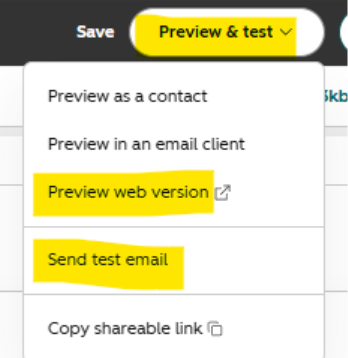
Step 9: Review and Send
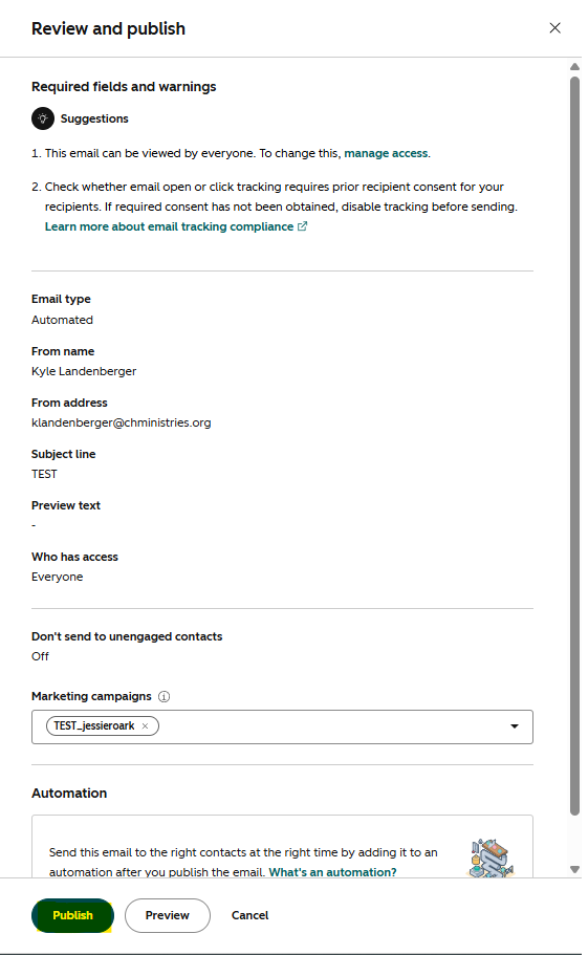
Description: Click Review and send, Review and schedule, or Review and publish. Fix required items before completing the send.
Screenshot / Picture for Step 9
 ]
]